
Appearance
How-To: Perform Custom Sorting in Relewise Search
By default, the sorting of Relewise search is done through the use of relevance and popularity, which dictates, alongside the search index weighting, the sort order of the search results. This is one of the primary uses of Relewise, and we encourage our customers to make use of this whenever possible, to maximize the usefulness that you gain from using Relewise search.
Certain situations, however, may necessitate a more rigid sort order. Relewise supports several different sorting logics to meet more specialized requirements on a case by case basis. The important thing to note is that any sorting logic that is not either of the PopularitySorting or RelevanceSorting types will not use Relewise's personalization, and so will not be able to dynamically respond to a user's preferences.
Whenever you employ a specific sort order, we recommend creating an explicit fallback to Relewise's PopularitySorting. That way, you can overrule the algorithm in those places where you need to, but still benefit from Relewise's core functionality.
Note that the sort order of a search is defined in the request itself. As such, this is something you must do on the developer side; it cannot be done via the My Relewise UI.
Usecase Example
You have a category page/PLP where you want to sort the first ten products in a certain order, and then fallback to Relewise's personalization.
You want to give your users the option of sorting search results by price, from lowest to highest or vice versa (note that this would use the
ProductAttributeSortinglogic).
This article aims to explain the logic behind creating a custom sort order that relies on the value of a data key on the entities being sorted. Note that this method works for the AttributeSorting logics as well, but for this guide we will focus specifically on sorting products via ProductDataSorting.
To set this up, you will need the following set up ahead of time:
- A datakey on your product that contains a numeric value, for instance
sortOrder.
Ensure your data is integrated
First, ensure that the data key containing your sort order value has been properly integrated into Relewise. You do this by going to the Entities page in My Relewise, navigating to Products, and finding one of the relevant products to be sorted. Click on it, and under the Data tab, locate your key.
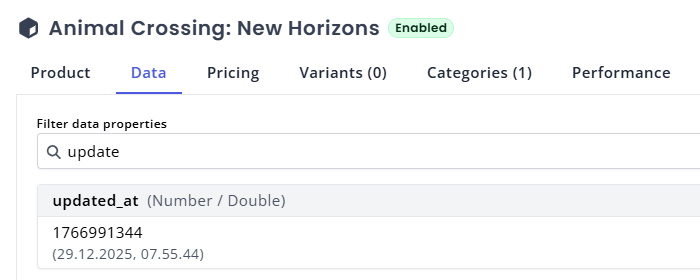
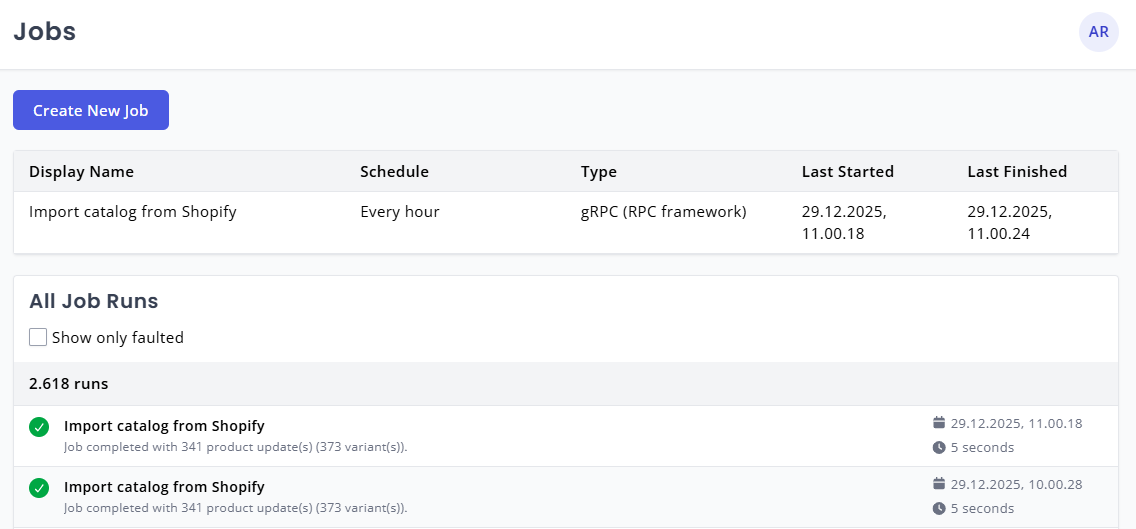
If you cannot find your data on the relevant product, double-check that you are integrating it correctly. Depending on how you integrate data, this will mean either checking the product feed you use to pull data, or the job you have set up to push data. If you are pulling data, the problem may simply be that the job has not run yet; you can check the status of the job by going to My Relewise, under Administration -> Jobs.
Set up the request and fallback
With your data properly integrated, you can set about creating your custom sorting. Using the ProductDataSorting method, specify the name of the key you are using (remember that data keys are case sensitive in Relewise), and specify whether you want the sorting to be ascending (lowest to highest) or descending (highest to lowest).
The ProductDataSorting logic has a few options. For this example, we are using the Data Selection Strategy Product, because we want to only consider the data on the product and not on any potential Variants, and the Mode as Numerical, since we are explicitly using a Double value for the data key. We also specify that we want the order Ascending, since we want our products sorted from the lowest sort order to the highest (thus allowing us to specify that the product with sortOrder = 1 goes in the first spot, 2 goes in the second spot, etc.).
json
{
  "$type": "Relewise.Client.Requests.Search.ProductSearchRequest, Relewise.Client",
  "Settings": {
    "SelectedProductProperties": {
      "DisplayName": true,
    },
  },
  "Sorting": {
    "Value": {
      "$type": "Relewise.Client.DataTypes.Search.Sorting.Product.ProductDataSorting, Relewise.Client",
      "Key": "sortOrder",
      "DataSelectionStrategy": "Product",
      "Mode": "Numerical",
      "Order": "Ascending",
      "ThenBy": {
        "$type": "Relewise.Client.DataTypes.Search.Sorting.Product.ProductPopularitySorting, Relewise.Client",
        "Order": "Descending"
      }
    }
  },
  "Skip": 0,
  "Take": 40,
  "Language": {
    "Value": "en"
  },
  "DisplayedAtLocation": "plp",
  "Filters": {
    "Items": [
      {
        "$type": "Relewise.Client.Requests.Filters.ProductCategoryIdFilter, Relewise.Client",
        "CategoryIds": [
          "103"
        ],
        "EvaluationScope": "ImmediateParent",
        "TypeName": "ProductCategoryIdFilter",
        "Negated": false
      }
    ]
  }
}
In this example, we have specified a ThenBy, which creates the fallback sorting logic. This allows us to specify that only a certain number of products should be affected by the sortOrder values, and for any product where the value is identical, to fallback to product popularity instead. As such, we can now specify the first ten products by assigning them a sortOrder value, and then assign all other products an arbitrary value to make them distinct from the products we actually want to affect.
For instance, in the example above, you might provide all other products a value of 10000 to make it clear that they are not the intended target of the sortOrder logic, and to keep them from interfering with the intended products. As long as the products are all given the same arbitrary value, they will count as "unsortable" by the first sorting logic, and move on to the subsequent sorting logic defined by the thenBy option - in this case, their popularity.